A PICTURE-LED FIRST START
A few steps.
A world of radio.
From the right firmware to your first reports. Follow the pictures for your display, with the important details alongside each step.
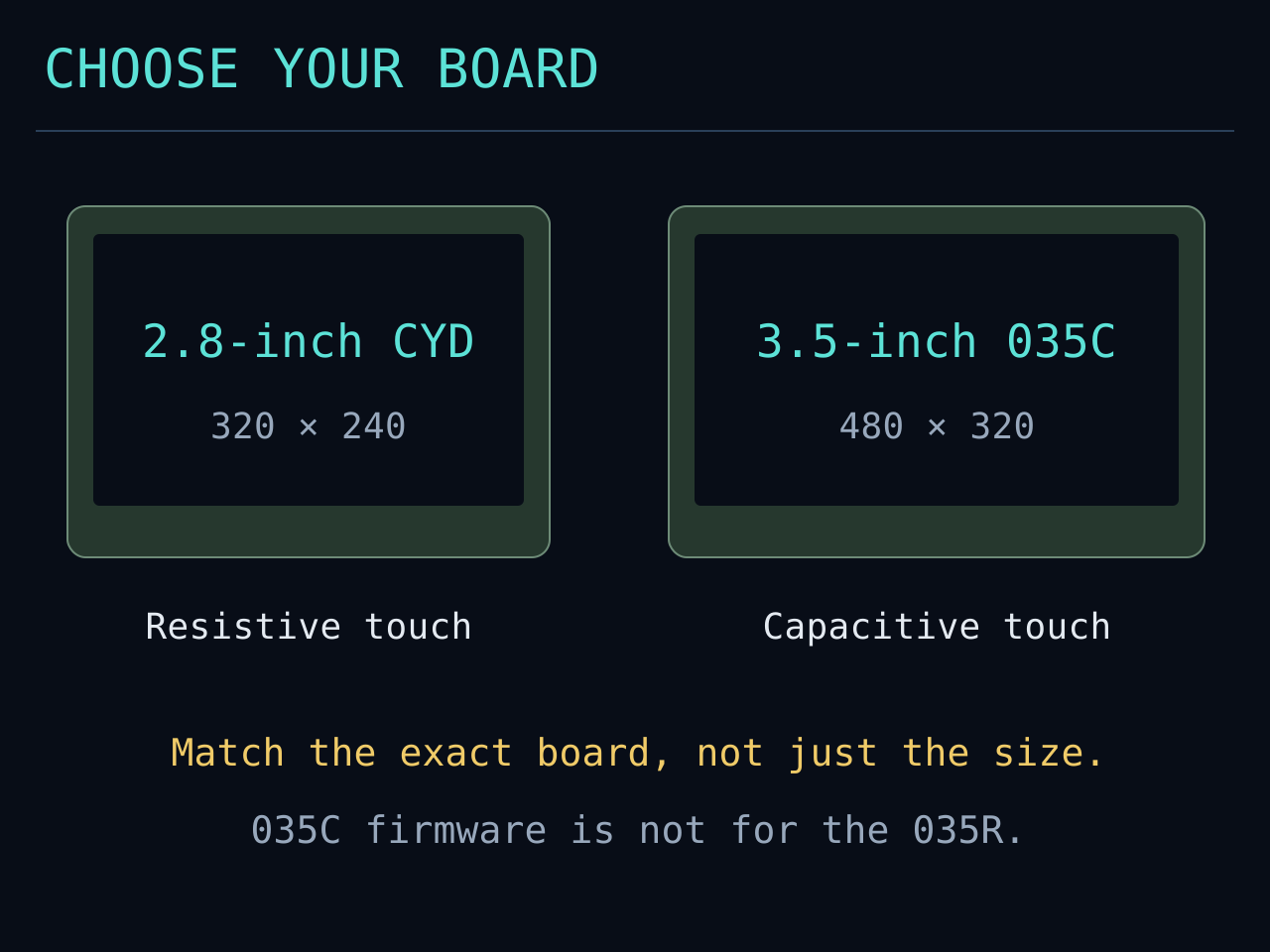
The 2.8-inch CYD uses resistive touch and asks for calibration on a fresh installation.
Screens are high-resolution illustrations with example settings. Use the network address and password shown on your own device.
Match the display to the firmware.
Choose by the exact board model, not just the screen size.
- 2.8-inch: a supported standard or Diymore CYD with ILI9341 / ILI9341V display and XPT2046 resistive touch.
- 3.5-inch: ESP32-3248S035C with ST7796 display and GT911 capacitive touch, with no touch calibration needed. The 035R is a different board.
- Have a USB data cable, desktop Chrome or Edge, and a 2.4 GHz Wi-Fi network with internet access ready.
ILLUSTRATED GUIDE · EXAMPLE SETTINGS Install from your browser.
Use a desktop computer for the first installation.
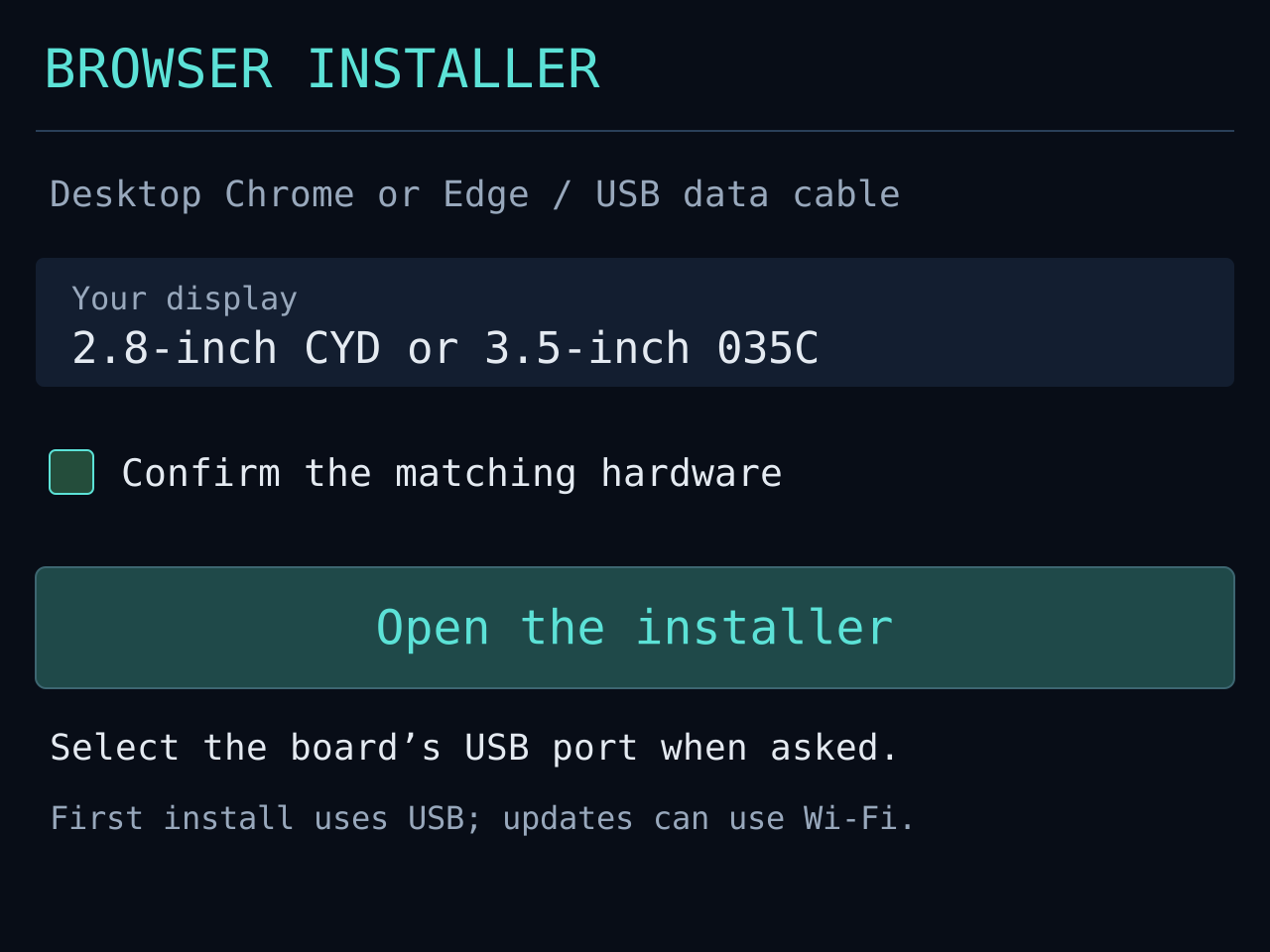
- Connect the board with a USB data cable. Close any other program using its serial port.
- Open the installer, select the matching display model and confirm the hardware. Choose the board’s USB port when the browser asks.
- Keep USB connected until installation has finished. If you are updating an existing DX Pilot, leave Erase device unchecked to retain your saved settings.
ILLUSTRATED GUIDE · EXAMPLE SETTINGS 2.8-INCH CYD ONLY
Follow the touch targets.
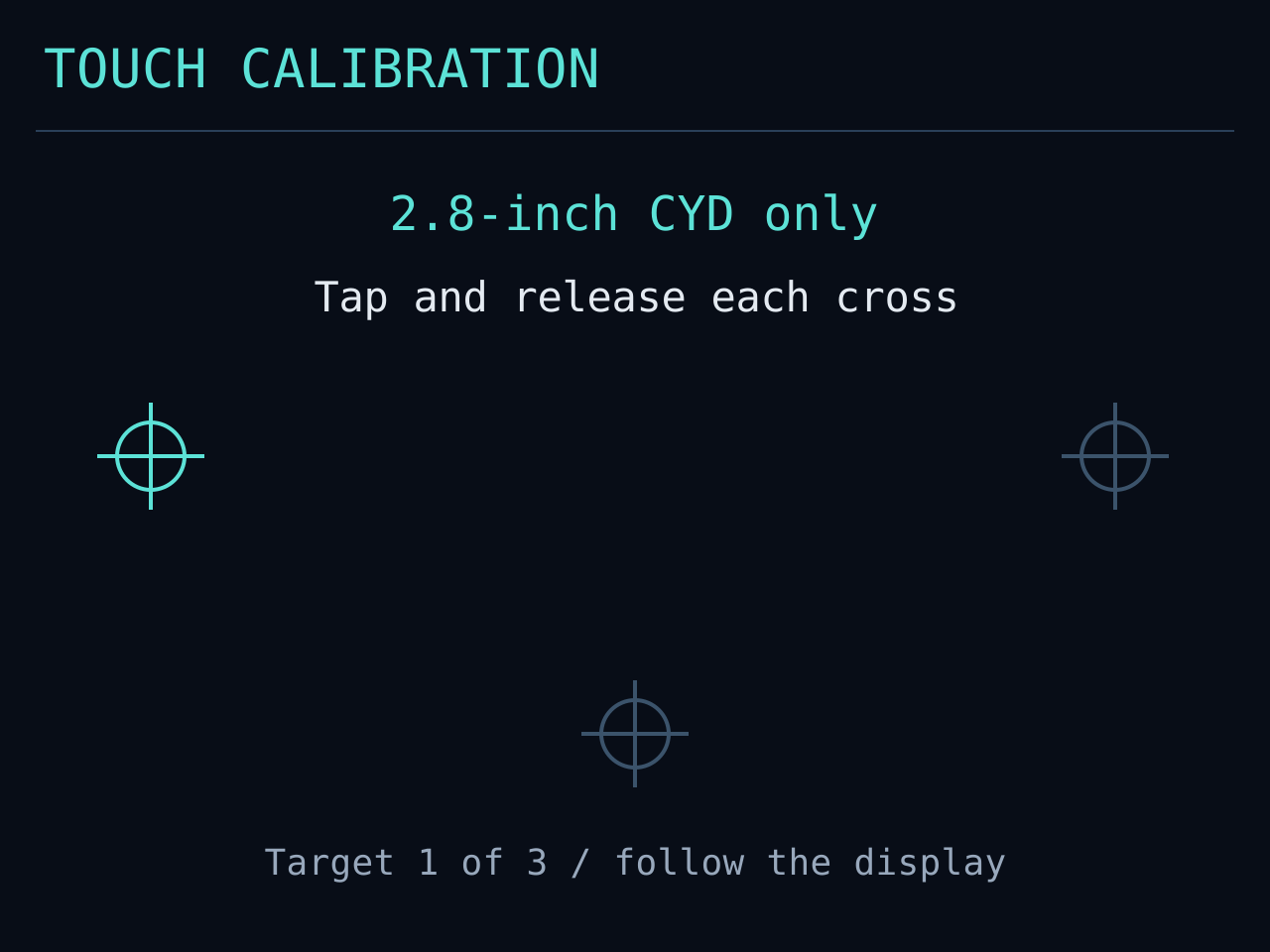
This step applies to a fresh 2.8-inch CYD installation.
- Tap and release each of the three crosses shown on the display. A suitable stylus can make the resistive touch targets easier to hit.
- Do not drag between the targets. Once calibration finishes, continue to station setup.
- You can repeat touch calibration later from Settings → Reset.
ILLUSTRATED GUIDE · EXAMPLE SETTINGS Open the display’s local setup.
Your phone or computer can make entering the details easier.
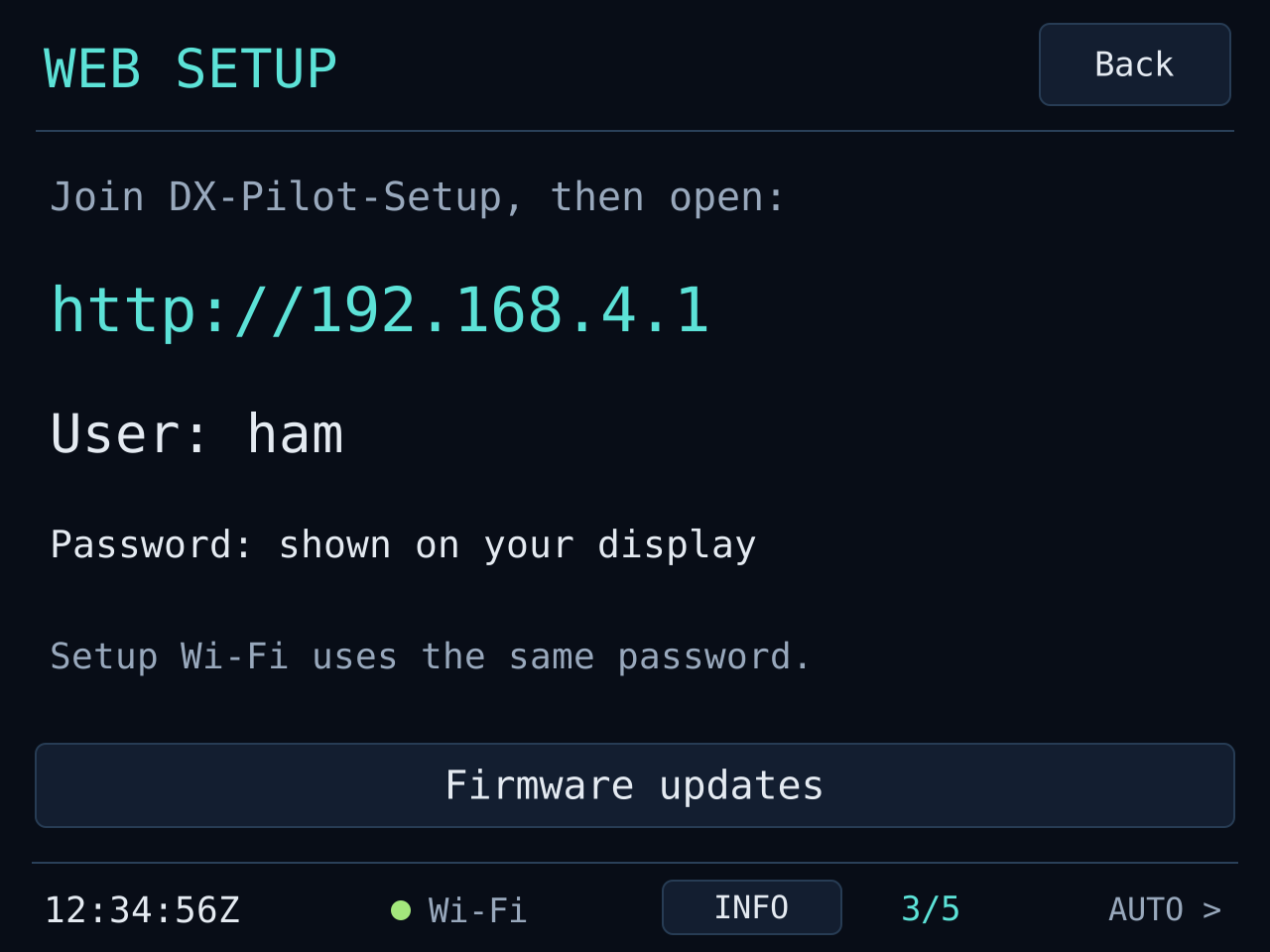
- On a first start without saved Wi-Fi, join the DX-Pilot-Setup wireless network using the password shown on your display. Stay connected if your phone says this network has no internet.
- Open http://192.168.4.1 in your browser. Sign in as ham using that same displayed password.
- Already on your home Wi-Fi? Open Settings → Web setup on the display and use the local address it shows instead. This setup page belongs to your device on your network.
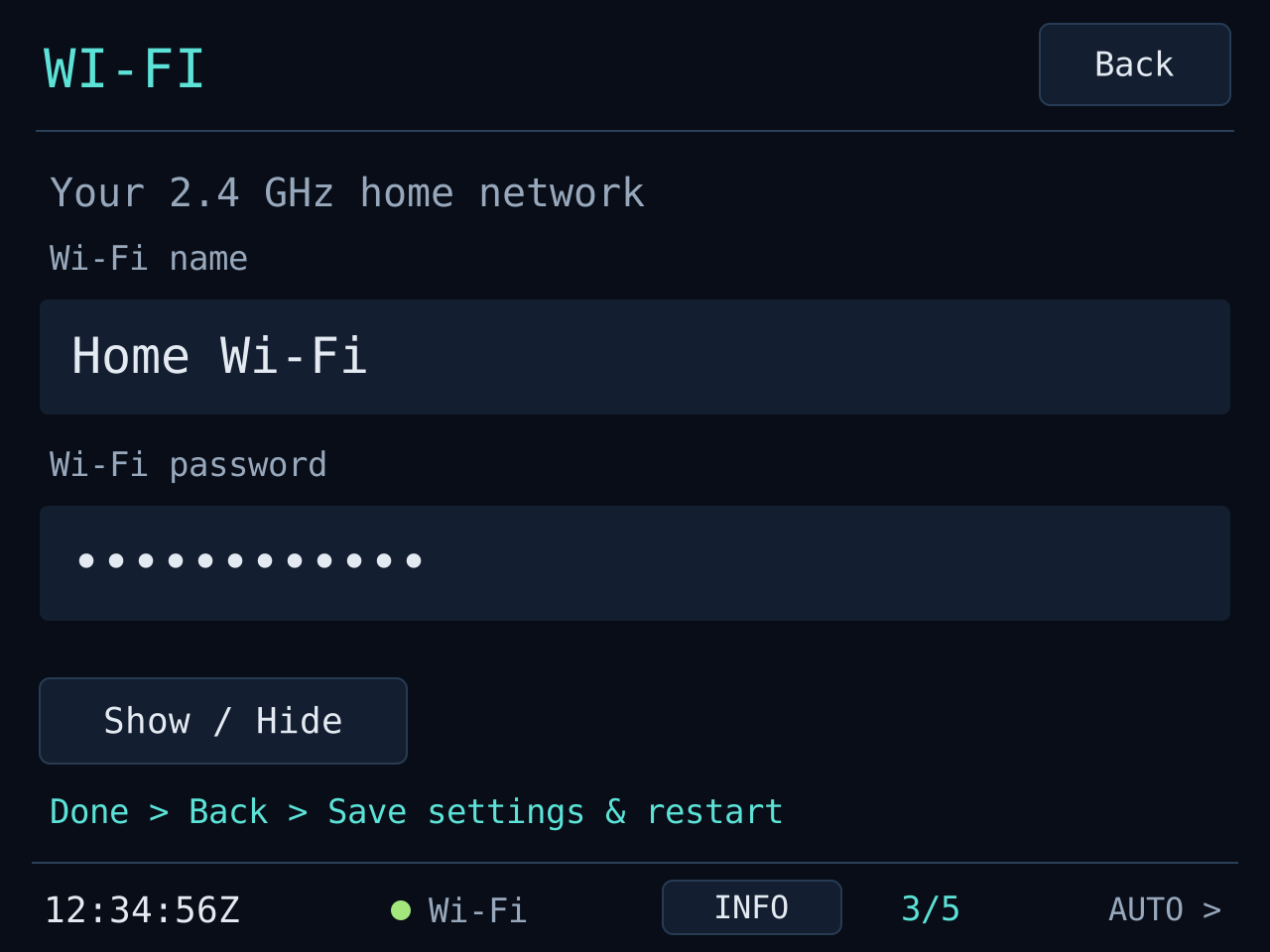
ILLUSTRATED GUIDE · EXAMPLE SETTINGS Add your home Wi-Fi.
Use the name and password for your 2.4 GHz network.
- Enter your Wi-Fi name and password in local web setup, or use Settings → Wi-Fi on the display.
- On the device, Show / Hide lets you check and correct the saved password. Use it privately so your Wi-Fi password is not visible to other people.
- If you are editing on the touchscreen, tap Done, then Back. Save the complete settings once the station details are ready too.
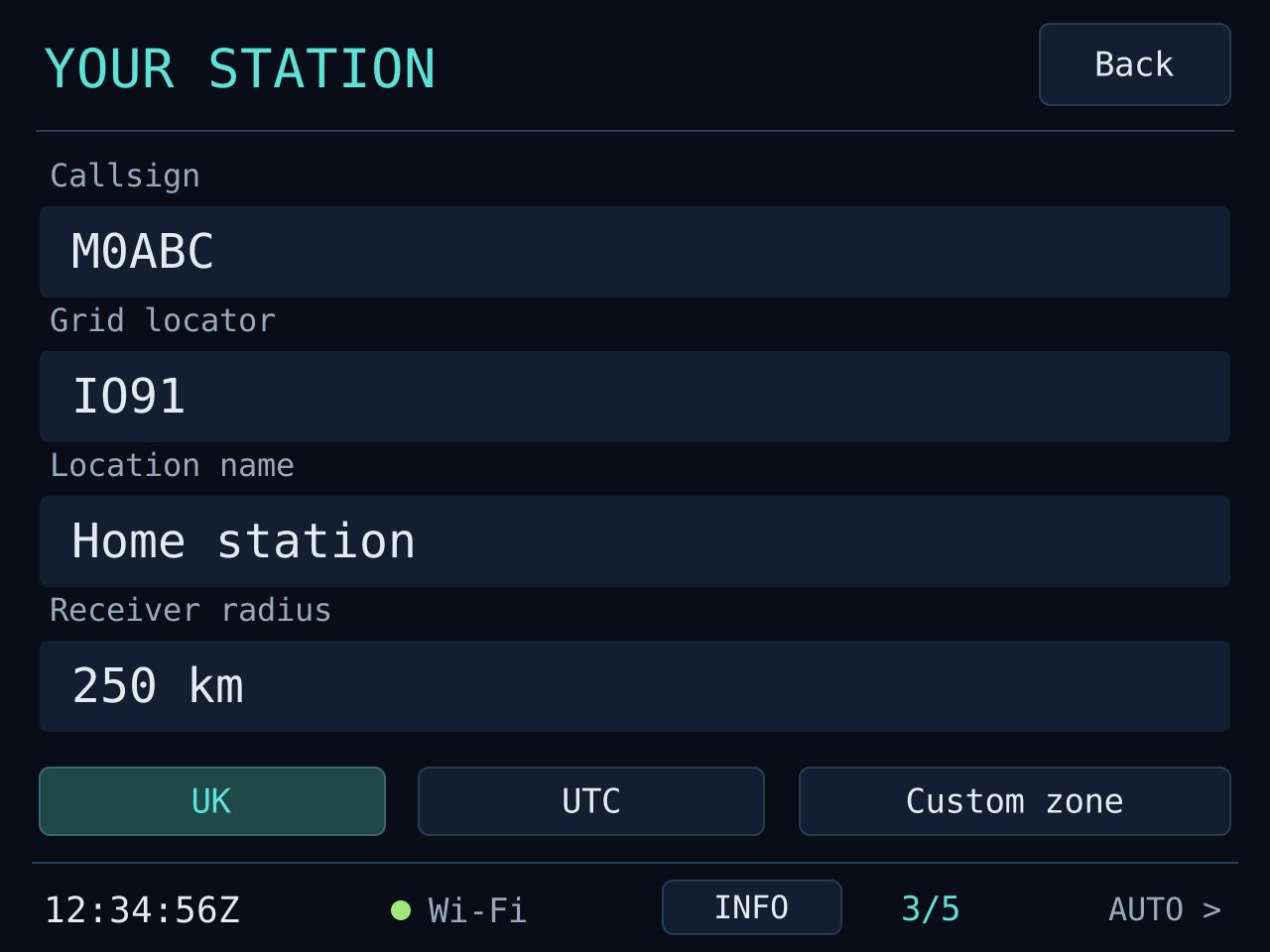
ILLUSTRATED GUIDE · EXAMPLE SETTINGS Enter your station details.
Your locator determines which receiver reports are nearby.
- Enter your callsign, home Maidenhead locator and a place name. The place name is a label; the locator provides the location used by the display.
- Check receiver radius, local time zone, HF bands and modes. The initial time zone and cluster reporter filter are UK-oriented, so review them for your station.
- The two display sizes provide the same features. Adjust page timings and brightness later, once you have seen the screens in use.
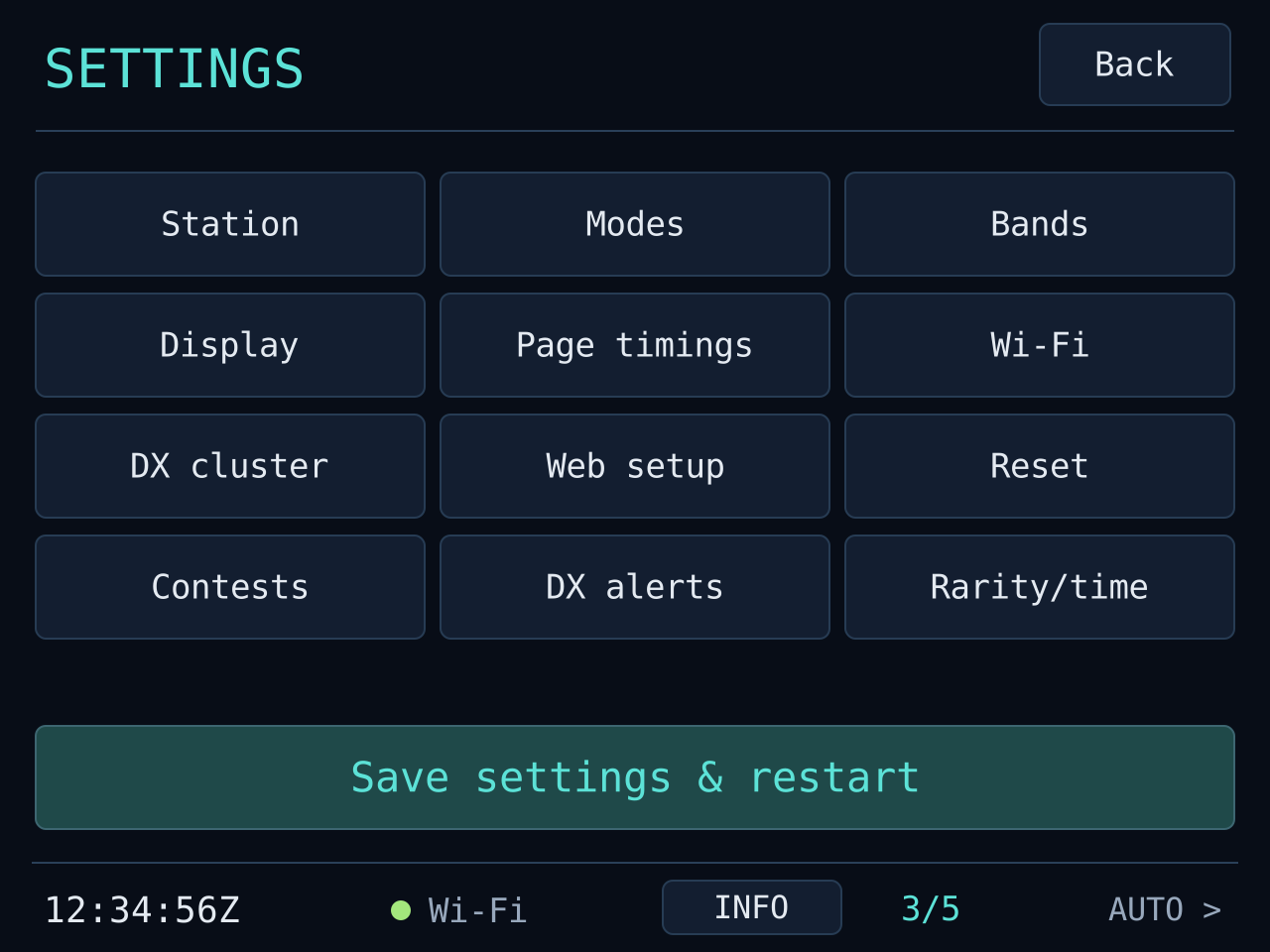
ILLUSTRATED GUIDE · EXAMPLE SETTINGS Save and let the display restart.
Apply the settings together when you are happy with them.
- In the browser, save the settings. On the device, return to the Settings menu and choose Save settings & restart.
- Keep the display powered. It restarts and joins your home Wi-Fi; reconnect your phone or computer to that home network too.
- Open Settings → Web setup whenever you need its current local browser address. After setup, the computer can be disconnected and the display powered from a suitable USB supply.
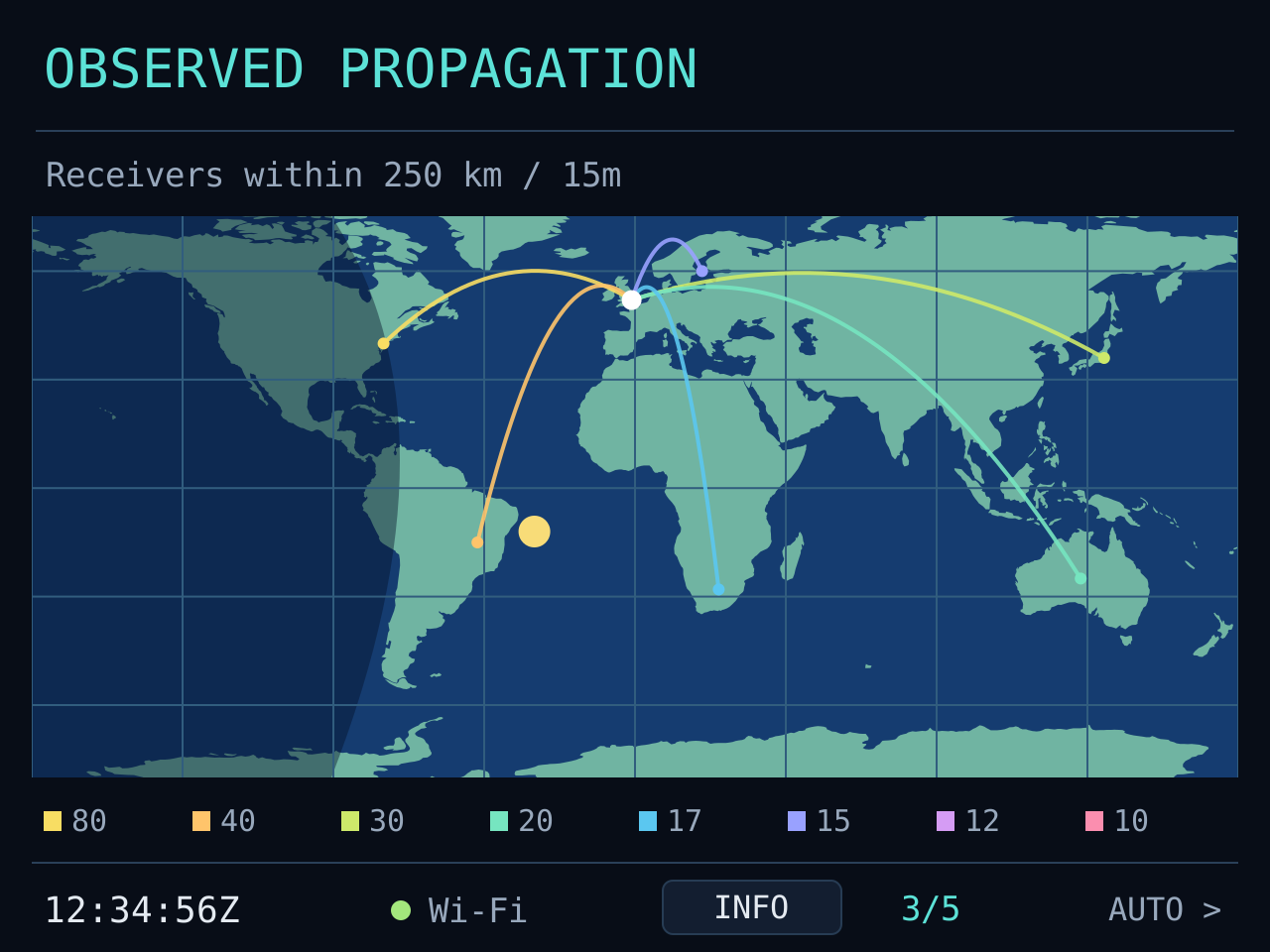
ILLUSTRATED GUIDE · EXAMPLE SETTINGS Give the first reports a little time.
The clock and feeds need Wi-Fi and internet access.
- Allow the clock to synchronise and the initial feeds to connect. Nearby PSK reports accumulate as new reports arrive; older reports are not backfilled at startup.
- Cycle through PSK propagation, DX spots, the map, HAM clock and the general HF outlook. Missing reports are not proof that a band is closed.
- If the display stays empty, check Wi-Fi status, station locator, receiver radius and your selected bands/modes before assuming there is no activity.
ILLUSTRATED GUIDE · EXAMPLE SETTINGS
ONCE YOU ARE CONNECTED
A few useful
touch controls.
The two display sizes use the same main controls.
- Next screen
- Tap a page header or a blank area.
- Spot details
- Tap a row on DX Spots. Use Back to return.
- Settings
- Tap the small bottom-left clock, or hold for about four seconds and release.
- Pause / resume
- Hold for about one second and release.
- Calendars & log
- Tap Info in the footer. Back goes up a level; Home returns to the main screen.
AN OPTIONAL NEXT STEP
Make DX alerts
personal.
Import an ADI/ADIF export through your display’s local Web setup → My log & personalised DXCC alerts.
- Choose your exported log file and the station records you want to use.
- Review the worked / LoTW-confirmed summary and any import warnings before replacing the saved summary.
- Choose your comparison: country overall, band, exact mode, or band and mode together. FT8 and FT4 are separate.
- Enable your chosen log targets and the master alert switch. Rarity alerts are an independent option.
Your browser processes the full ADIF locally. The display receives a compact summary, rather than your full logbook. Reimport an updated export to refresh it; a spot alert does not log a contact.
Explore My log & alerts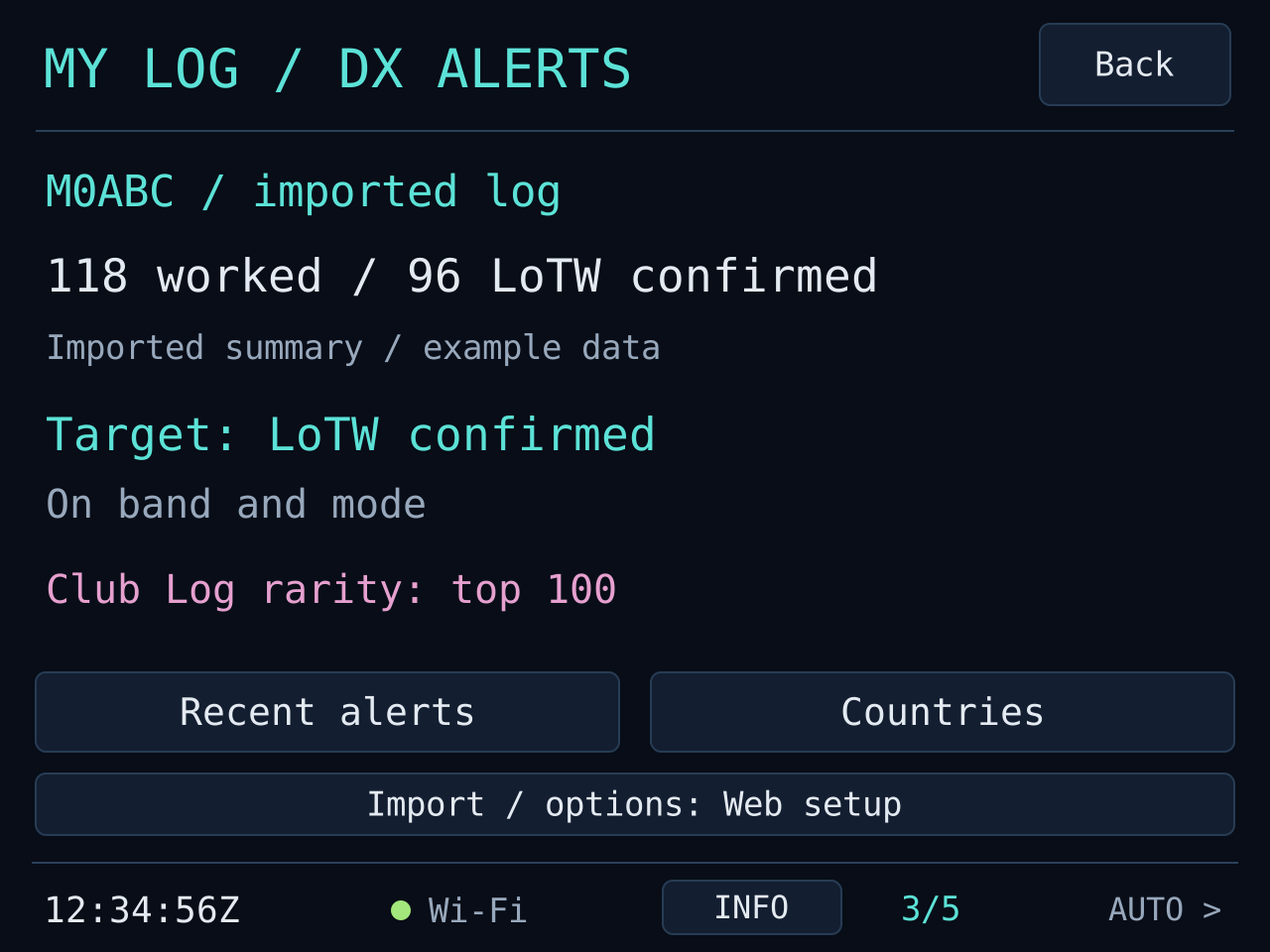
The computer cannot find the USB board.
Try a USB cable known to carry data, connect directly to the computer and close software using the serial port. Use desktop Chrome or Edge. The manual installation notes cover drivers, BOOT/RESET and slower upload options.
I cannot see DX-Pilot-Setup.
If the display has already joined your home Wi-Fi, use Settings → Web setup to find its local address. A fresh device without saved Wi-Fi offers the setup network; the setup network also becomes available again when the home network cannot be reached.
My phone says the setup network has no internet.
Stay connected while you open http://192.168.4.1 and enter the settings. You are connecting directly to the display for setup. After saving and restarting, reconnect your phone to your home Wi-Fi.
What password do I use for local web setup?
Use the device password shown on your display and username ham. Settings → Web setup shows the current address and login. The illustrations deliberately contain no real device or Wi-Fi password.
Wi-Fi works, but the map or PSK table is empty.
Allow internet time to synchronise and new reports to arrive. Check the locator, radius, bands and modes. A reception report without a transmitting locator can appear in lists but cannot create a map path. No recent reports does not mean that a band is closed.
How do I update it after the first installation?
On supported current firmware, open Info → About → Updates, or the update section in local web setup. Check for a compatible release, review it and confirm installation. Checking does not install anything automatically. Keep USB power connected while updating. Read the Wi-Fi update guide for details.
Why am I not getting personalised NEW alerts?
First import a matching station’s log summary through local web setup, review warnings and enable the targets and master alert switch. NEW alerts need an imported log; only records confirmed by LoTW count toward the LoTW-confirmed basis. Rarity is independent of your log. Your selected filters, freshness window and cooldown still apply.