DX PILOT / BY G1CEC
DX Pilot.
A window on HF.
Live reports, DX spots, propagation and a shack clock. A compact touchscreen companion for the radio bench, powered by an ESP32.
A COMPANION FOR THE SHACK
Keep an eye on the bands.
DX Pilot brings several useful views together on a small, self-contained display. It connects to your Wi-Fi and cycles between pages; there is no CAT connection and no need to leave a computer attached.
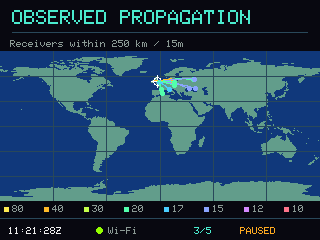
Observed HF propagation
Recent PSK reports from receivers near your chosen location, across 80, 40, 30, 20, 17, 15, 12 and 10 metres.
DX spots at a glance
A six-row spot list with countries and colour-coded modes. Tap a row for the details.
A view of the world
An observed-propagation map with the day/night boundary and the Sun’s position.
Time, outlook & calendars
UTC and local time, sunrise and sunset, HamQSL’s HF outlook, solar figures and contest/DXpedition information.
These are reports and outlooks, rather than a measurement of your own antenna. Missing reports do not necessarily mean a band is closed.
BEFORE YOU PLUG IT IN
Choose the build for your display.
DX Pilot supports tested standard and Diymore 2.8-inch CYD boards, and the 3.5-inch ESP32-3248S035C. Both offer the same features. The 035C uses its full screen width with physical-size lettering.
| Board | 2.8-inch CYD | 3.5-inch 035C |
|---|---|---|
| Model | Tested standard CYD and Diymore boards | ESP32-3248S035C |
| Display | 320 × 240 · ILI9341 / ILI9341V | 480 × 320 · ST7796 |
| Touch | XPT2046 resistive · calibrate at first start | GT911 capacitive · use a finger |
| Processor / flash | ESP32 · 4 MB | ESP32 · 4 MB |
Match the display and touch controllers before installing. The 3.5-inch build is for the 035C capacitive model; the resistive 035R needs different firmware.
The installer recognises the ESP32 chip, so you must choose the correct display model yourself. Use a USB data cable, desktop Chrome or Edge, and a 2.4 GHz Wi-Fi network with internet access.
FROM THE PAGE TO THE DISPLAY
Plug in. Install. Set up.
Connect the supported board to your computer, close other software using its serial port, then open the installer below.
Install DX Pilot
CHOOSE YOUR SCREENBoth builds have the same DX Pilot features. Choose the build for your display.
Select your display and confirm the model to open the installer.
After installation, continue with the display’s own setup screens below. If the browser cannot find the board, check the data cable and USB driver. The manual instructions also describe BOOT/RESET and a slower upload option.
Manual installation instructionsFIRST START
Make it your station.
- Check touch. On a fresh 2.8-inch installation, tap and release the three calibration targets. On the 3.5-inch 035C, use a finger; no calibration is needed.
- Enter your details. Add your callsign, Maidenhead locator, place and Wi-Fi in Settings, then save. Check the time zone and reporting filters for your location.
- Let the reports arrive. Give the display time to connect and download its first reports, schedules and outlook. The clock obtains internet time.
You can then disconnect the computer and power the display from a suitable USB supply.
Using the display
Tap the footer clock for Settings, Info for calendar information, or a DX row for spot details. Tap the blank header area to advance a page. Hold for about a second to pause/resume cycling; a longer hold of about four seconds opens Settings. Page durations are adjustable.
Set up through a local browser
The device’s Web setup screen gives its address and login. During access-point setup, join DX-Pilot-Setup with the password shown on the display, then visit 192.168.4.1. The username is ham, using that displayed password.
What is included?
This is an HF display for online reports and time. Version 0.5.0 provides matching features on both the 2.8-inch CYD and 3.5-inch 035C: ADIF import, worked or LoTW-confirmed DXCC alerts, independent rarity alerts, a choice of DX cluster, clock weather and Wi-Fi updates. It also includes device counting, enabled by default with an opt-out in Advanced web settings. See the user guide and device-counting details. It does not control your radio.
THE PROJECT FILES
Firmware, notes & licences.
Choose the package for your screen. Each contains the four firmware images, checksum-verifying Windows uploader, instructions and licence notices.
DX Pilot on GitHub: documentation and releases
Choose the hardware build above; its label shows the firmware version. Editable application source stays private. DX Pilot’s application is provided under PolyForm Noncommercial 1.0.0; third-party components retain their licences and the corresponding relinking materials above.